How to Get Email Alerts When Your Autonomous Database Backups Fail
A simple, console-based guide to setting up backup failure notifications in 15 minutes
Why You Need This
Your Autonomous Database runs automatic backups every night. But what happens if they fail?
Without monitoring: You won't know until it's too late and you need to restore data.
With monitoring: You get an email within 30 seconds when a backup fails, so you can fix it immediately.
This guide shows you how to set up email alerts using only the OCI Console - no CLI or coding required.
What You'll Build
Backup Fails → OCI Detects It → Email Sent to You
Time to complete: 15 minutes
Prerequisites
- Access to OCI Console
- Admin permissions (or permissions for Events and Notifications)
- Email address for alerts
- At least one Autonomous Database
Step 1: Create a Notification Topic
A notification topic is like an email distribution list - it's where alerts get sent.
1.1 Navigate to Notifications
- Log in to OCI Console
- Click the hamburger menu (≡) in the top left
- Go to: Application Integration → Notifications
1.2 Create the Topic
- Click the blue Create Topic button
- Fill in the form:
- Name:Database-Backup-Alerts
- Description:Email alerts for database backup failures - Click Create
✅ Topic created! You'll see it in the list with status "Active".
Save the topic name - you'll need it in Step 3.
Step 2: Add Your Email Address
Now tell the topic where to send alerts.
2.1 Open Your Topic
- Click on your topic name: Database-Backup-Alerts
- This opens the topic details page
2.2 Create Email Subscription
- On the left side, click Subscriptions
- Click the blue Create Subscription button
- Fill in the form:
- Protocol: SelectEmail
- Email: Enter your email address (e.g.,[email protected]) - Click Create
2.3 Confirm Your Email
Important: Check your email inbox!
- Look for an email from:
[email protected] - Subject: "Oracle Cloud Infrastructure Notifications Subscription Confirmation"
- Click the Confirm subscription link in the email
Back in the console, your subscription status will change from "Pending" to "Active".
✅ Email subscription confirmed!
Tip: Check your spam folder if you don't see the confirmation email within 2 minutes.
Step 3: Create the Event Rule
The event rule tells OCI to send an email when a backup fails.
3.1 Navigate to Events Service
- Click the hamburger menu (≡)
- Go to: Observability & Management → Events Service → Rules
3.2 Create the Rule
- Click the blue Create Rule button
3.3 Fill in Basic Information
In the "Rule Information" section:
- Display Name: Database Backup Failure Alert
- Description: Send email when Autonomous Database backups fail
- Rule Status: Keep it Enabled (checked)
3.4 Configure Rule Conditions
This is where we tell OCI what to watch for.
In the "Rule Conditions" section:
- Condition: Select
Event Type - Service Name: Select
Database - Event Type: Select these three options (hold Ctrl/Cmd to select multiple):
-Autonomous Container Database - Create Backup End
-Autonomous Database - Automatic Backup End
-Autonomous Database - Create Backup End
Why three types? This ensures we catch all backup failures regardless of type.
-
Click + Another Condition
-
Condition: Select
Attribute - Attribute Name: Type
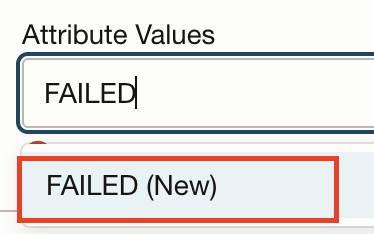
lifecycleState - Attribute Values: Type
FAILED
Note: Clicked FAILED (New) when typing in FAILED
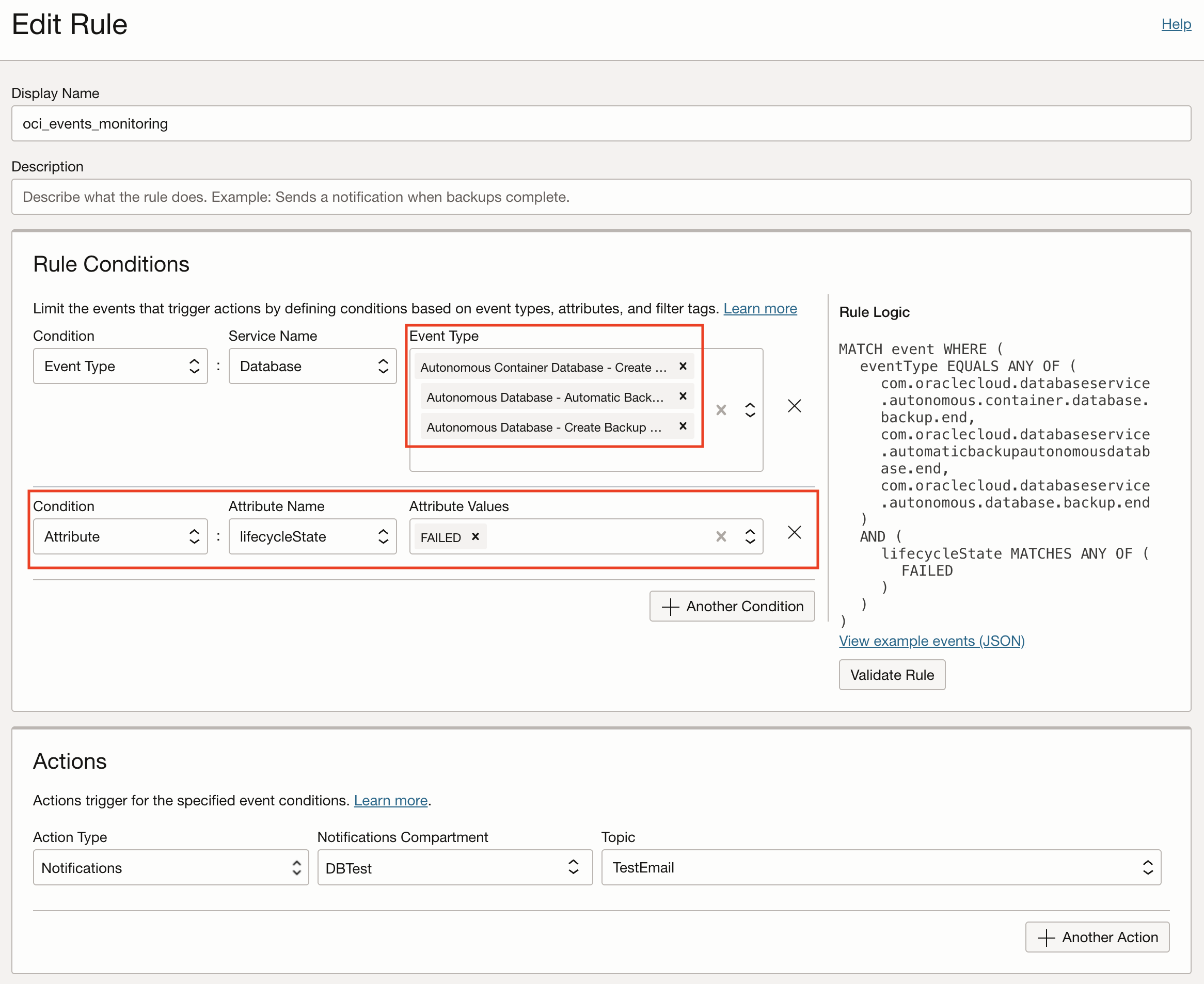
What this means: Only trigger when the backup's lifecycle state is "FAILED" (not successful backups).
3.5 Configure Actions
This is where we tell OCI to send an email.
In the "Actions" section:
- Action Type: Select
Notifications - Notifications Compartment: Select your compartment
- Topic: Select
Database-Backup-Alerts(the topic you created)
3.6 Create the Rule
- Review your settings
- Click the blue Create Rule button at the bottom
✅ Event rule created! You'll see it in the list with:
- Status: "Active" (green indicator)
- State: "Enabled"
Step 4: Test It Works (Optional but Recommended)
Let's verify you'll actually receive emails.
4.1 Send a Test Message
- Go back to: Application Integration → Notifications
- Click on your topic: Database-Backup-Alerts
- Click the Publish Message button
- Fill in:
- Message Title:Test: Backup Failure Alert
- Message Body:This is a test. If you receive this, your monitoring is working! - Click Publish Message
4.2 Check Your Email
Within 1-2 minutes, you should receive an email:
Subject: Oracle Cloud Infrastructure Notification

Message:
Test: Backup Failure Alert

This is a test. If you receive this, your monitoring is working!
✅ If you got the email, you're done! Your backup monitoring is working.
❌ No email? Check Step 2 - make sure you clicked the confirmation link.
What You'll Receive When a Backup Actually Fails
When a real backup fails, you'll get an email like this:
Subject: Oracle Cloud Infrastructure Notification

Event Type: Automatic Backup Autonomous Database - End
Event Time: 2025-11-20 02:30:15 UTC
Compartment: Production
Database: SHOPDB
Status: FAILED ❌

Details:
• Database ID: ocid1.autonomousdatabase.oc1.iad.anuwc...
• Error: Backup failed due to insufficient storage space
• Database Type: ATP (Transaction Processing)
• Storage: 1 TB
• Time: November 20, 2025 at 2:30 AM

This backup failure requires immediate attention.
You'll know exactly:
- Which database had the problem
- When it happened
- Why it failed
- What type of database it is
What Happens Now?
Automatic Monitoring
Your event rule is now actively monitoring all Autonomous Databases in your compartment, 24/7.
Every night around 2:00 AM (default backup time):
- Backups run automatically
- If successful: Nothing happens (no email)
- If failure: You get an email within 30 seconds
Scope of Monitoring
The rule monitors:
- ✅ All Autonomous Transaction Processing (ATP) databases
- ✅ All Autonomous Data Warehouse (ADW) databases
- ✅ In the compartment where you created the rule
- ✅ Automatic daily backups
- ✅ Manual backups (if you create them)
No per-database configuration needed - all databases are automatically covered!
Common Questions
Q: How much does this cost?
A: $0 - It's completely free!
- Event rules: Free
- Event processing: Free (first 2 million events/month)
- Email notifications: Free (unlimited)
Q: Will I get spammed with emails?
A: No - You only get emails when backups fail.
Successful backups don't trigger any notifications. Most databases have zero failures per month.
Q: What if I want to stop receiving alerts?
Two options:
Option 1 - Disable the rule temporarily:
1. Go to: Events Service → Rules
2. Click on: Database Backup Failure Alert
3. Click Edit
4. Uncheck Enabled
5. Click Save Changes
Option 2 - Delete your email subscription:
1. Go to: Notifications → Database-Backup-Alerts
2. Click Subscriptions
3. Click the ⋮ (three dots) next to your email
4. Click Delete
Q: Can I add more people to receive alerts?
A: Yes!
- Go to: Notifications → Database-Backup-Alerts → Subscriptions
- Click Create Subscription
- Add their email address
- They'll need to confirm their subscription
Q: Can I add SMS text alerts?
A: Yes - but SMS costs $0.0064 per message.
- Go to: Notifications → Database-Backup-Alerts → Subscriptions
- Click Create Subscription
- Select SMS as protocol
- Enter phone number (format:
+1-555-123-4567)
Q: What if I have multiple compartments?
A: Create one rule per compartment, or create the rule in the parent compartment - it will monitor all child compartments too.
Q: How do I know if it's working?
Option 1 - Send test message (shown in Step 4)
Option 2 - Check event history:
1. Go to: Events Service → Event History
2. Look for past backup events (success or failure)
3. Confirms events are flowing
Option 3 - Enable success alerts temporarily:
- Create a second rule with lifecycleState = ACTIVE
- You'll get emails for successful backups
- Confirms the whole pipeline works
- Disable it after testing to avoid daily emails
Q: What should I do when I receive a failure alert?
Immediate actions:
-
Check the Work Request for details:
- Go to: Oracle Database → Autonomous Database → [Your DB]
- Click: Work Requests (left menu)
- Find the failed backup
- Read the error message -
Common issues and fixes:
Storage full:
- Go to database details
- Click Scale Up/Down
- Increase storage
Database stopped:
- Ensure database is running during backup window
- Check scheduled operations
Service limit:
- Go to: Governance → Limits, Quotas and Usage
- Request limit increase
- If you can't resolve it:
- Create a support ticket
- Include: Database OCID, Work Request ID, timestamp
Troubleshooting
Problem: Never received confirmation email
Solutions:
1. Check spam/junk folder
2. Add [email protected] to safe senders
3. Verify email address was typed correctly
4. Try creating the subscription again
Problem: Confirmation email received but subscription still shows "Pending"
Solutions:
1. Click the confirmation link again
2. Wait 5 minutes and refresh the page
3. Delete and recreate the subscription
Problem: Test message sent but no email received
Solutions:
1. Verify subscription status is "Active" (not "Pending")
2. Check spam folder
3. Wait 5 minutes - sometimes there's a delay
4. Try sending another test message
Problem: Not sure if monitoring is working
Solution - Check rule status:
1. Go to: Events Service → Rules
2. Find: Database Backup Failure Alert
3. Verify:
- Status: "Active" (green)
- State: "Enabled" (checked)
If both are correct, monitoring is working!
Summary Checklist
After following this guide, you should have:
- ✅ Created notification topic:
Database-Backup-Alerts - ✅ Added your email subscription
- ✅ Confirmed email subscription (status: Active)
- ✅ Created event rule:
Database Backup Failure Alert - ✅ Rule is enabled and active
- ✅ Tested with a message (optional)
- ✅ Received test email (optional)
Your backup monitoring is now live!
What's Monitored
You're now monitoring:
Need More Help?
Option 1: Check Work Requests
See actual backup status:
1. Oracle Database → Autonomous Database → [Your DB]
2. Work Requests → Look for backup operations
3. Check if any have "Failed" status
Option 3: Oracle Support
If you're still stuck:
1. Create a support ticket
2. Mention: "Setting up OCI Events for Autonomous Database backups"
3. Include: Your rule OCID and topic OCID
Key Takeaways
✅ Simple setup - Just 3 steps in the console
✅ Zero cost - Completely free
✅ Real-time alerts - Email within 30 seconds
✅ No maintenance - Set it once and forget it
✅ Comprehensive - Monitors all databases automatically
You've just added an important safety net for your databases!
When backups fail, you'll know immediately and can fix the problem before it becomes critical.
Next Steps
For additional redundancy, consider:
-
Add SMS alerts - For critical databases
- Same process as email, just select "SMS" as protocol
- Costs $0.0064 per message -
Add team members - Share the responsibility
- Create additional email subscriptions
- Each person confirms separately -
Create Slack alerts - For team visibility
- Select "SLACK" as protocol
- Use your Slack webhook URL -
Document your runbook - What to do when you get an alert
- List common issues and solutions
- Include escalation contacts
Conclusion
You've successfully set up email alerts for Autonomous Database backup failures!
What you accomplished:
- Created a notification system in the OCI Console
- Configured real-time backup failure monitoring
- Set up email delivery for alerts
- Tested the system works
Time invested: 15 minutes
Ongoing effort: Zero
Peace of mind: Priceless
Your databases are now being monitored 24/7, and you'll know immediately if any backup fails.
Happy monitoring! 📧✅
Last updated: November 2025
Based on: Real-world implementation for production databases
Console version: OCI Console 2025